Reference implementation

Browse the full React Native push sample (UI Kit).

What this guide covers

  • CometChat Dashboard setup (enable push, add FCM + APNs providers).
  • Platform credentials (Firebase for Android/iOS, Apple entitlements).
  • Copying the sample notification stack and aligning IDs/provider IDs.
  • Native glue for Android (manifest permissions) and iOS (PushKit).
  • Token registration, navigation from pushes, testing, and troubleshooting.

What you need first

  • CometChat app credentials (App ID, Region, Auth Key) and Push Notifications enabled with an FCM provider (React Native Android) and APNs provider for iOS.
  • Firebase project with an Android app (google-services.json in android/app) and Cloud Messaging enabled; optional iOS app if you use FCM on iOS.
  • Apple push setup: APNs .p8 key/cert in CometChat, iOS project with Push Notifications + Background Modes (Remote notifications) permissions.
  • React Native 0.81+, Node 18+, physical Android + iOS devices for reliable push/call testing.

1. Enable push and add providers (CometChat Dashboard)

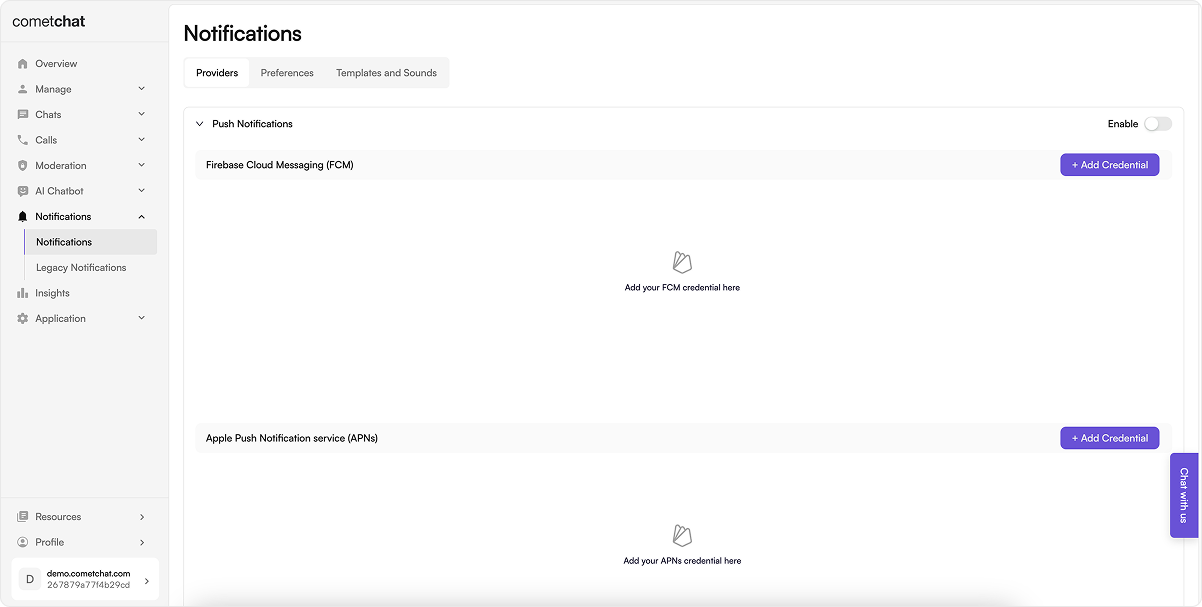
  1. Go to Notifications → Settings and enable Push Notifications.
Enable Push Notifications
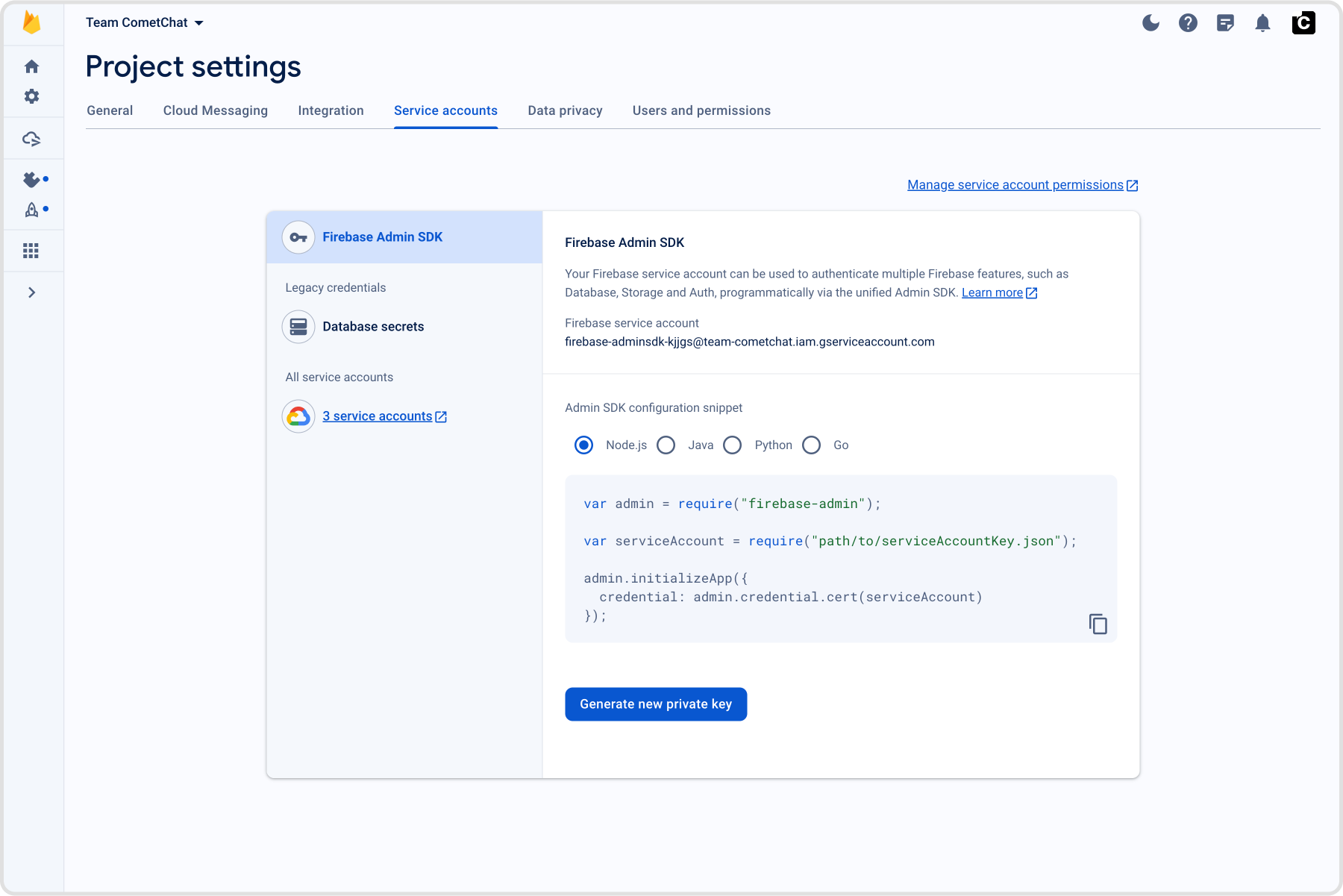
  1. Add an FCM provider for React Native Android; upload the Firebase service account JSON and copy the Provider ID.
Upload FCM service account JSON
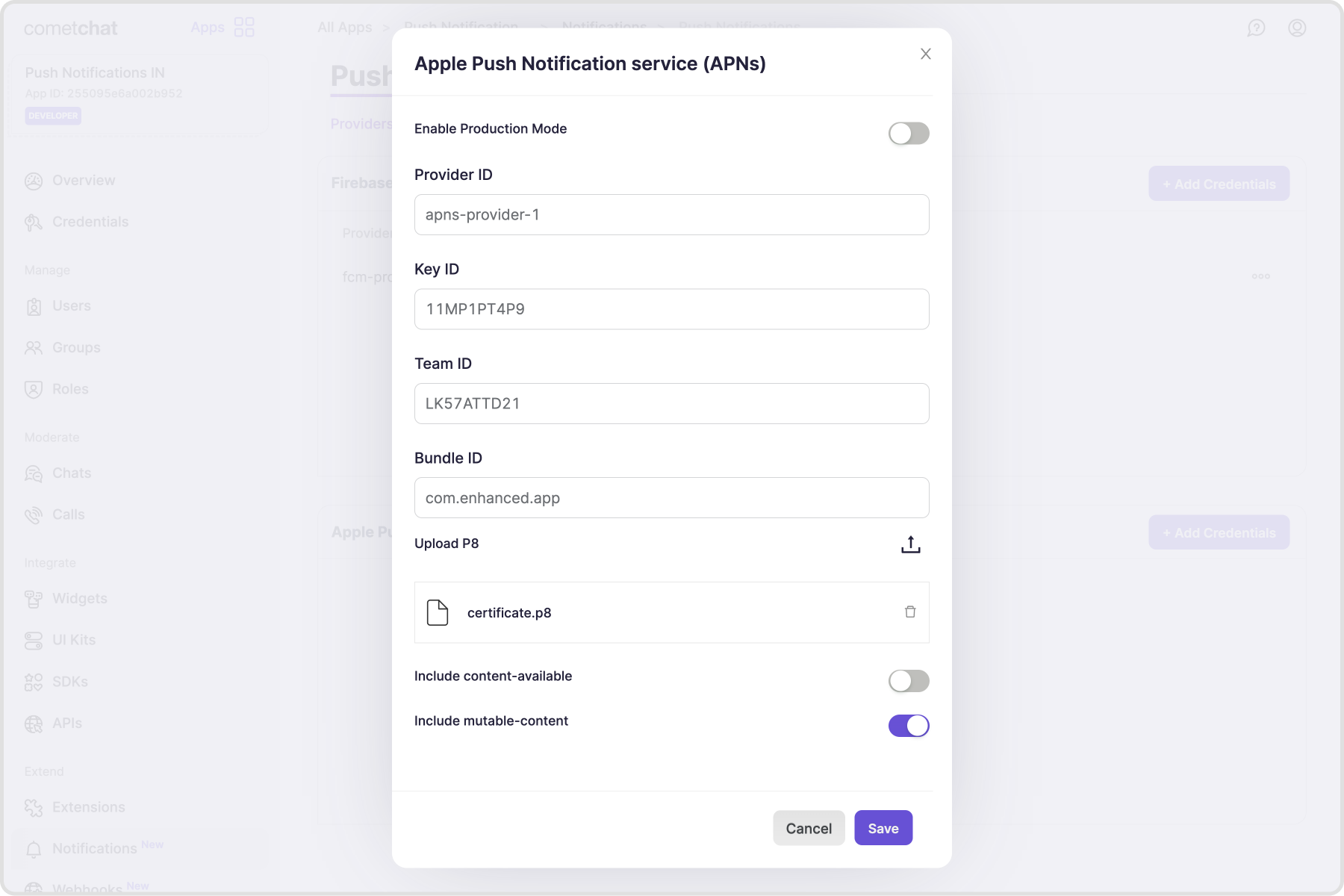
  1. Add an APNs provider for iOS and copy the Provider ID.
Upload APNs credentials

2. Prepare platform credentials

2.1 Firebase Console

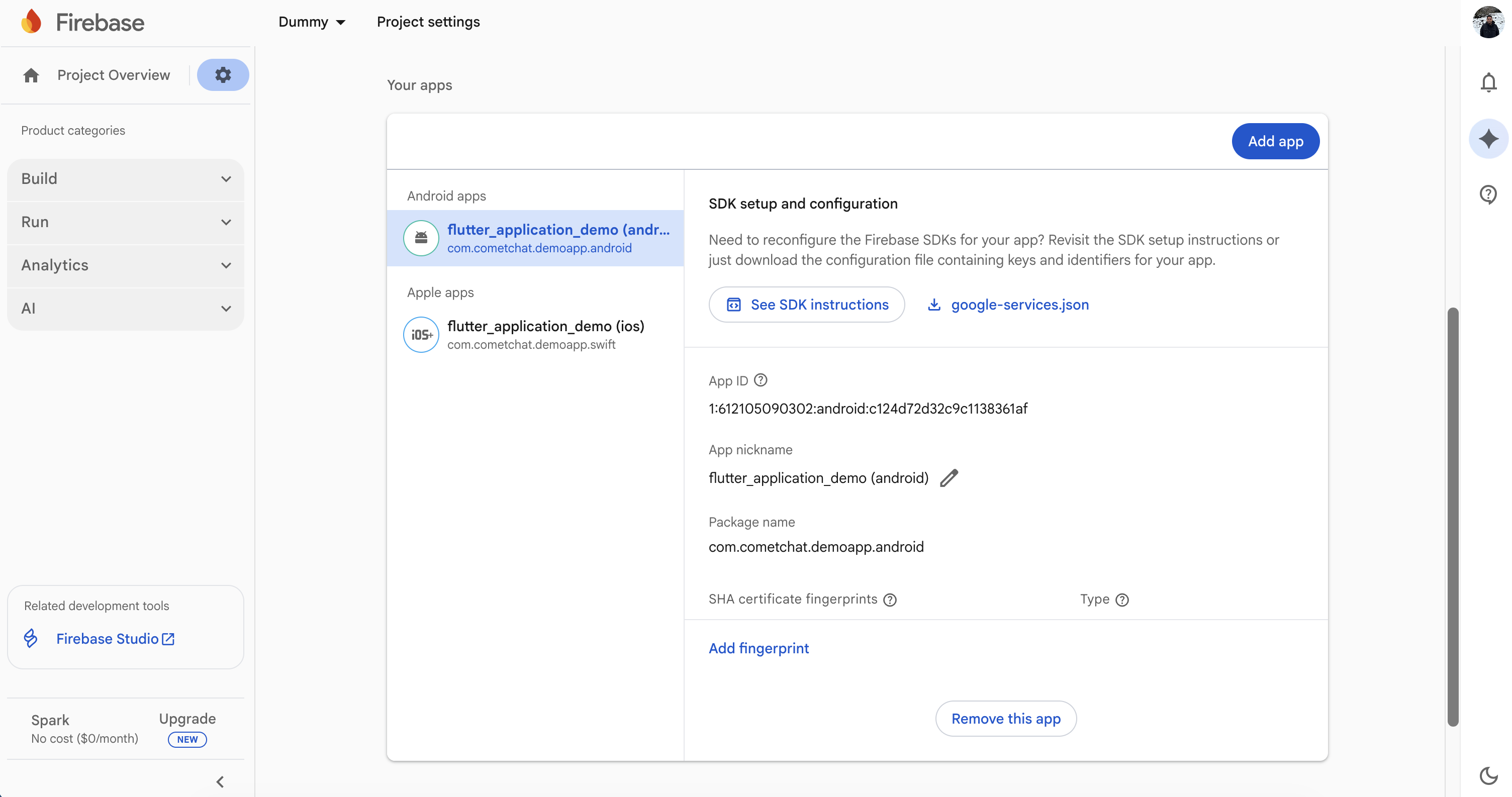
  1. Register your Android package name (same as applicationId in android/app/build.gradle) and download google-services.json into android/app.
  2. Enable Cloud Messaging.
Firebase - Push Notifications

2.2 Apple Developer portal

  1. Generate an APNs Auth Key (.p8) and note the Key ID and Team ID.
  2. Enable Push Notifications plus Background Modes → Remote notifications on the bundle ID.

3. Local configuration

  • Update src/utils/AppConstants.tsx with appId, authKey, region, fcmProviderId, and apnProviderId.
  • Keep app.json name consistent with your bundle ID / applicationId.

3.1 Dependencies snapshot (from Sample App)

npm install \
    @react-native-firebase/app@23.4.0 \
    @react-native-firebase/messaging@23.4.0 \
    @notifee/react-native@9.1.8 \
    @react-native-community/push-notification-ios@1.11.0 \
    react-native-voip-push-notification@3.3.3 \
    github:cometchat/react-native-callkeep
Match these or newer compatible versions in your app.

4. Android setup

Place google-services.json in android/app; then follow the steps below.

4.1 Configure Firebase with Android credentials

To allow Firebase on Android to use the credentials, the google-services plugin must be enabled on the project. This requires modification to two files in the Android directory. First, add the google-services plugin as a dependency inside of your /android/build.gradle file:
buildscript {
  dependencies {
    // ... other dependencies
    classpath("com.google.gms:google-services:4.4.4") 
  }
}
Lastly, execute the plugin by adding the following to your /android/app/build.gradle file:
apply plugin: 'com.android.application'
apply plugin: 'com.google.gms.google-services' 

4.2 Configure required permissions in AndroidManifest.xml as shown.

    <uses-permission android:name="android.permission.INTERNET" />
    <uses-permission android:name="android.permission.WRITE_EXTERNAL_STORAGE" />
    <uses-permission android:name="android.permission.READ_EXTERNAL_STORAGE" />
    <uses-permission android:name="android.permission.VIBRATE" />
    <uses-permission android:name="android.permission.CAMERA" />
    <uses-permission android:name="android.permission.RECORD_AUDIO" />
    <uses-permission android:name="com.google.android.c2dm.permission.RECEIVE" />
    <uses-permission android:name="android.permission.POST_NOTIFICATIONS"/>  
    <uses-permission android:name="android.permission.BIND_TELECOM_CONNECTION_SERVICE"/>
    <uses-permission android:name="android.permission.FOREGROUND_SERVICE" />
    <uses-permission android:name="android.permission.READ_PHONE_STATE" />
    <uses-permission android:name="android.permission.CALL_PHONE" />
    <uses-permission android:name="android.permission.WAKE_LOCK" />
and ask for runtime permissions where needed (e.g. POST_NOTIFICATIONS on Android 13+).
import { PermissionsAndroid, Platform } from "react-native";

  const requestAndroidPermissions = async () => {
    if (Platform.OS !== 'android') return;

    try {
        // Ask for push‑notification permission
        const authStatus = await messaging().requestPermission();
        const enabled =
            authStatus === messaging.AuthorizationStatus.AUTHORIZED ||
            authStatus === messaging.AuthorizationStatus.PROVISIONAL;

        if (!enabled) {
            console.warn('Notification permission denied (FCM).');
        }
    } catch (error) {
        console.warn('FCM permission request error:', error);
    }

    try {
        await PermissionsAndroid.requestMultiple([
            PermissionsAndroid.PERMISSIONS.WRITE_EXTERNAL_STORAGE,
            PermissionsAndroid.PERMISSIONS.READ_EXTERNAL_STORAGE,
            PermissionsAndroid.PERMISSIONS.CAMERA,
            PermissionsAndroid.PERMISSIONS.RECORD_AUDIO,
            PermissionsAndroid.PERMISSIONS.POST_NOTIFICATIONS,
        ]);
    } catch (err) {
        console.warn('Android permissions error:', err);
    }
}

4.3 Register FCM token with CometChat

Inside your main app file where you initialize CometChat, add the below code snippet after the user has logged in successfully. Initilize and register the FCM token for Android as shown:
requestAndroidPermissions();

const FCM_TOKEN = await messaging().getToken();
console.log("FCM Token:", FCM_TOKEN);

// For React Native Android
CometChatNotifications.registerPushToken(
        FCM_TOKEN,
        CometChatNotifications.PushPlatforms.FCM_REACT_NATIVE_ANDROID,
        "YOUR_FCM_PROVIDER_ID" // from CometChat Dashboard
    )
    .then(() => {
        console.log("Token registration successful");
    })
    .catch((err) => {
        console.log("Token registration failed:", err);
    });

4.4 Unregister FCM token on logout

Typically, push token unregistration should occur prior to user logout, using the CometChat.logout() method. For token unregistration, use the CometChatNotifications.unregisterPushToken() method provided by the SDKs.

5. iOS setup

5.1 Project Setup

Enable Push Notifications and Background Modes (Remote notifications) in Xcode.
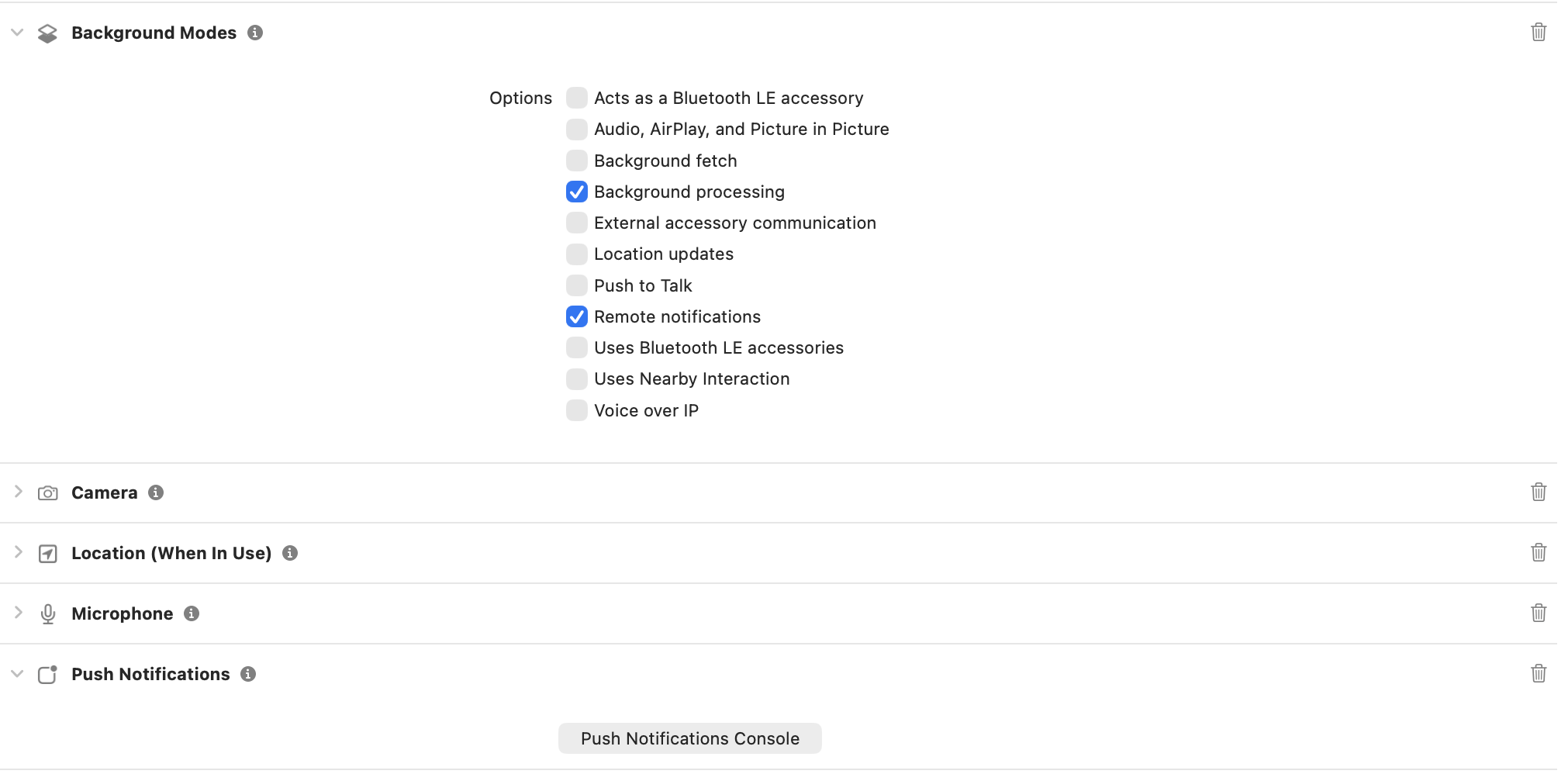
Enable Push Notifications

5.2 Install dependencies:

Install the required packages for iOS push notifications:
npm install react-native-push-notification@^8.1.1 
npm install @react-native-community/push-notification-ios@^1.12.0

5.3 AppDelegate.swift modifications:

Add imports at the top:
import UserNotifications
import RNCPushNotificationIOS
Add UNUserNotificationCenterDelegate to the AppDelegate class declaration:
class AppDelegate: UIResponder, UIApplicationDelegate, UNUserNotificationCenterDelegate 
Add the following inside the didFinishLaunchingWithOptions method:
UNUserNotificationCenter.current().delegate = self

UNUserNotificationCenter.current().requestAuthorization(
    options: [.alert, .badge, .sound]
) {
    granted,
    error in
    if granted {
        DispatchQueue.main.async {
            application.registerForRemoteNotifications()
        }
    } else {
        print("Push Notification permission not granted: \(String(describing: error))")
    }
}
Add the following methods to handle push notification events:
func application(_ application: UIApplication, didRegisterForRemoteNotificationsWithDeviceToken deviceToken: Data) {
  print("APNs device token received: \(deviceToken)")
  RNCPushNotificationIOS.didRegisterForRemoteNotifications(withDeviceToken: deviceToken)
}

func application(_ application: UIApplication, didFailToRegisterForRemoteNotificationsWithError error: Error) {
  print("APNs registration failed: \(error)")
  RNCPushNotificationIOS.didFailToRegisterForRemoteNotificationsWithError(error)
}

func application(_ application: UIApplication, didReceiveRemoteNotification userInfo: [AnyHashable: Any], fetchCompletionHandler completionHandler: @escaping (UIBackgroundFetchResult) -> Void) {
  RNCPushNotificationIOS.didReceiveRemoteNotification(userInfo, fetchCompletionHandler: completionHandler)
}

func userNotificationCenter(_ center: UNUserNotificationCenter, willPresent notification: UNNotification, withCompletionHandler completionHandler: @escaping (UNNotificationPresentationOptions) -> Void) {
  completionHandler([.banner, .sound, .badge])
}
  
func userNotificationCenter(_ center: UNUserNotificationCenter, didReceive response: UNNotificationResponse, withCompletionHandler completionHandler: @escaping () -> Void) {
  RNCPushNotificationIOS.didReceive(response)
  completionHandler()
}
Add the following to Podfile to avoid framework linkage issues:
use_frameworks! :linkage => :static
You might have to remove below code if already present in your Podfile:
linkage = ENV['USE_FRAMEWORKS']
if linkage != nil
  Pod::UI.puts "Configuring Pod with #{linkage}ally linked Frameworks".green
  use_frameworks! :linkage => linkage.to_sym
end
Then lets install pods and open the workspace:
cd ios
pod install
open YourProjectName.xcworkspace

5.4 App.tsx modifications:

Import CometChatNotifications:
import { CometChat, CometChatNotifications } from "@cometchat/chat-sdk-react-native";
Get device token and store it in a ref: Also, define your APNs provider ID from the CometChat Dashboard. And request permissions on mount:
const APNS_PROVIDER_ID = 'YOUR_APNS_PROVIDER_ID'; // from CometChat Dashboard
const apnsTokenRef = useRef < string | null > (null);

useEffect(() => {
    if (Platform.OS !== 'ios') return;

    const onRegister = (deviceToken: string) => {
        console.log(' APNs device token captured:', deviceToken);
        apnsTokenRef.current = deviceToken;
    };

    PushNotificationIOS.addEventListener('register', onRegister);

    PushNotificationIOS.addEventListener('registrationError', error => {
        console.error(' APNs registration error:', error);
    });

    // Trigger permission + native registration
    PushNotificationIOS.requestPermissions().then(p =>
        console.log('Push permissions:', p),
    );

    return () => {
        PushNotificationIOS.removeEventListener('register');
        PushNotificationIOS.removeEventListener('registrationError');
    };
}, []);
After user login, register the APNs token:
//  Register token ONLY if we already have it
if (apnsTokenRef.current) {
    await CometChatNotifications.registerPushToken(
        apnsTokenRef.current,
        CometChatNotifications.PushPlatforms.APNS_REACT_NATIVE_DEVICE,
        APNS_PROVIDER_ID
    );
    console.log(' APNs token registered with CometChat');
}
Prior to logout, unregister the APNs token:
await CometChatNotifications.unregisterPushToken();

6. Handling notification taps and navigation

To handle notification taps and navigate to the appropriate chat screen, you need to set up handlers for both foreground and background notifications. :TODO: Add code snippets and explanation for setting up Notifee handlers and navigation logic.

7. Testing checklist

  1. Android: install on device, grant POST_NOTIFICATIONS; log in and verify FCM token registration success.
  2. Send a message from another user:
    • Foreground: Notifee banner shows unless that chat is open.
    • Background/terminated: tap opens the correct conversation; Notifee background handler runs.
  3. iOS: verify APNs device token register; tap push from killed app opens the right chat; remote notifications finish handler is called.
  4. Rotate tokens (reinstall or revoke) and confirm onTokenRefresh re-registers.

8. Troubleshooting

SymptomQuick checks
No pushesConfirm google-services.json location, package/bundle IDs match Firebase/Apple, Push extension enabled with correct provider IDs, permissions granted.
Token registration failsEnsure registration runs after login, provider IDs are set, and registerDeviceForRemoteMessages() is called (Android).